Vertical Wireless Mouse: Speed Roller + DPI Comfort
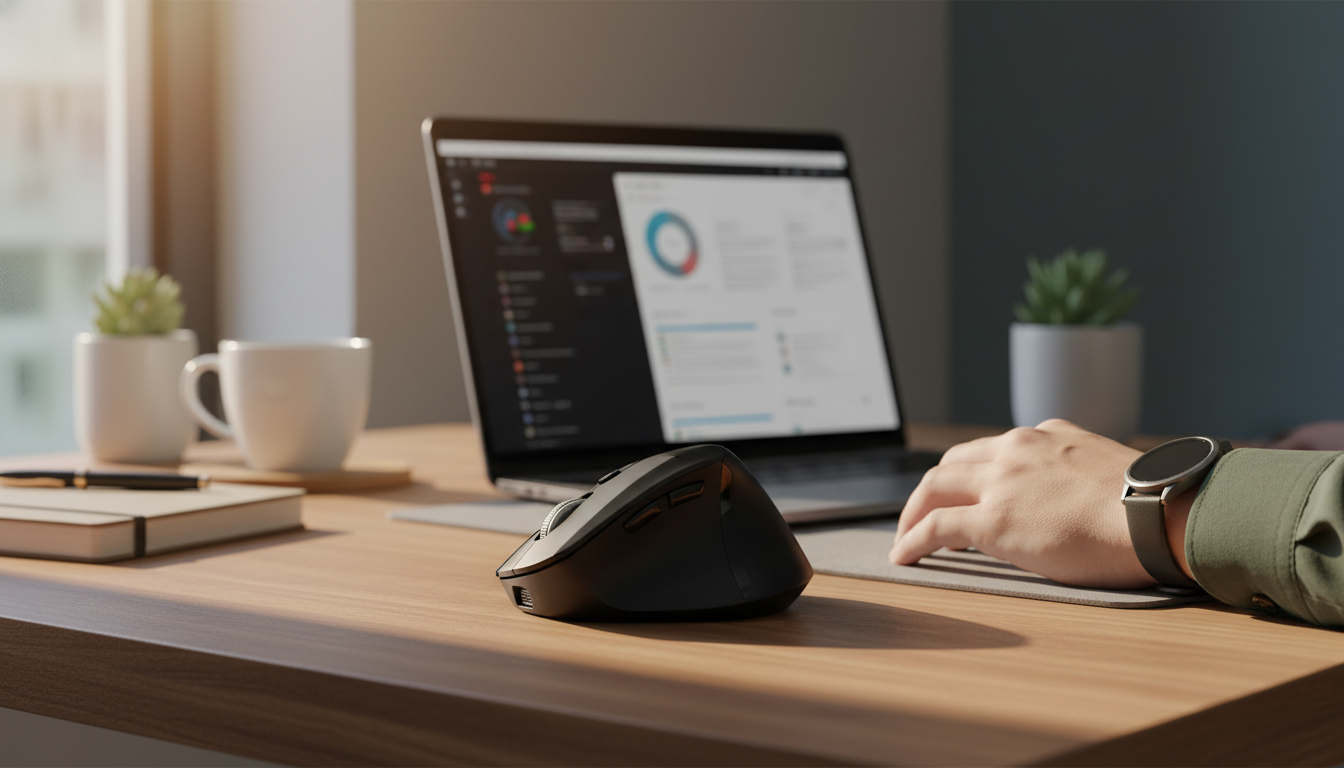
Wireless Vertical Ergonomic Mouse with Speed Roller & DPI Adjustment: Comfort, Control, and Faster Navigation
A vertical mouse can reduce wrist twist by placing the hand in a more natural handshake position, while a speed roller and on-the-fly DPI control make everyday navigation faster and more precise. The result is a setup that can feel easier on the forearm during long computer sessions—without giving up the quick scrolling and responsive pointer movement many people rely on for work and casual use.
What Makes a Vertical Mouse Feel More Comfortable
The standout difference with a vertical ergonomic mouse is the grip angle. Instead of flattening the hand against the desk, the mouse encourages a more neutral wrist and forearm position, which many users find reduces tension during long stretches of clicking and scrolling. Ergonomics guidance from organizations like NIOSH and OSHA emphasizes neutral posture and minimizing awkward joint positions—principles that pair naturally with a vertical grip.
Fit still matters. Look for a shape that supports the palm without forcing the fingers to overreach. If a mouse is too large, the thumb and ring finger can end up stretching to stabilize it; too small, and the hand may pinch for control. Button placement is another comfort factor: primary clicks should land under the fingers naturally, while thumb buttons (if present) should be reachable without curling the thumb sharply inward.
Finally, stability is underrated. A vertical mouse often has a taller profile than a standard mouse, so a well-designed base helps prevent tipping when lifting and repositioning—especially for users who “micro-lift” during precise edits or when working in tight desk spaces.
Speed Roller: When Fast Scrolling Helps (and When It Doesn’t)
A speed roller is built for momentum. Instead of slow, notched scrolling, it can help move through long pages, large spreadsheets, product lists, or code faster with fewer finger repetitions. If a typical day includes scanning lengthy PDFs, jumping between sections of documents, or reviewing timelines, the speed roller can save time and reduce the stop-and-start feel of standard scrolling.
That said, rapid scrolling isn’t always the best choice. For careful line-by-line reading, fine proofreading, or referencing a specific row in a spreadsheet, slower, more controlled scrolling may feel more accurate. Many users get the best experience by switching habits: quick flicks to travel, then slower turns to “land” precisely.
Scroll behavior can also vary by application. Browsers, spreadsheet apps, and PDF readers may apply different acceleration or smooth scrolling rules, so it’s worth testing the roller in the programs used most often—especially if the scroll feels too sensitive in one app but perfect in another.
DPI Adjustment: Matching Sensitivity to the Task
DPI (dots per inch) changes how far the cursor moves on screen relative to physical movement. A higher DPI typically means the pointer travels farther with a small hand motion, while a lower DPI usually supports more deliberate, pixel-level control. On a large monitor—or a dual-monitor setup—higher DPI can reduce arm travel. For tasks that require precise selections, such as highlighting text, selecting small UI elements, or carefully choosing spreadsheet cells, lower DPI can reduce overshooting.
A practical approach is to pick one “daily driver” DPI for general navigation, and a second DPI for either precision or speed. Constantly cycling through multiple levels can slow you down and make muscle memory harder to build.
DPI Quick Guide for Common Tasks
| Task | Suggested feel | Why it helps |
|---|---|---|
| Document reading & browsing | Medium | Comfortable control with minimal overshoot |
| Spreadsheets & data entry | Medium to high | Faster movement across wide sheets |
| Precise selections (cells, text, UI) | Low to medium | More accurate clicks and highlights |
| Multi-monitor setups | High | Less arm travel across larger desktop space |
Wireless Use: Stability, Range, and Battery Habits
Setup and Tuning (Windows and macOS)
On Windows, start with the built-in mouse settings for pointer speed and (if available) enhanced pointer precision, then test a few DPI levels while doing everyday tasks like email triage, document editing, and spreadsheet navigation. On macOS, Apple’s guide to adjusting mouse settings is a helpful reference for fine-tuning tracking and scrolling behavior: Change Mouse Settings on Mac.
Daily Comfort Tips for a Vertical Grip
Care, Cleaning, and Longevity
Product Snapshot
If the goal is a more neutral hand position plus quicker scrolling and flexible sensitivity, the Wireless Vertical Ergonomic Mouse with Speed Roller & DPI Adjustment is a practical pick for home offices, study spaces, and everyday productivity. The vertical shape targets reduced wrist twist, the speed roller helps move through long content faster, and DPI adjustment makes it easier to switch between precision and rapid navigation.
To round out a clean workspace, a compact surface nearby can also help keep essentials within reach (reducing awkward reaching and twisting). The Minimalist Acrylic Side Table can work as a simple landing spot for notebooks, chargers, or a small desk lamp next to a work area.
At-a-Glance Details
| Item | Details |
|---|---|
| Product | Wireless Vertical Ergonomic Mouse with Speed Roller & DPI Adjustment |
| Price | 20.51 USD |
| Availability | In stock |
| Product page | View product |
FAQ
What is the DPI button on the ergonomic mouse?
The DPI button changes cursor sensitivity—how far the pointer moves on screen for the same physical hand movement. Lower DPI usually helps with careful clicking and text selection, while higher DPI can feel faster on big screens or multiple monitors. Test a couple settings in your most-used apps to find a level that doesn’t overshoot targets.
Can I adjust the sensitivity of my wireless mouse?
Yes—most wireless mice let you adjust sensitivity through DPI switching and your operating system’s pointer speed settings. For the smoothest control, avoid setting both DPI and system pointer speed to the maximum at the same time. If the cursor still feels off, check whether your OS has pointer acceleration enabled and experiment with small changes.
















Leave a comment